
VS Code Overview
What Is VS Code
Section titled “What Is VS Code”Visual Studio Code (VS Code) is a free and open source code editor created by Microsoft. It’s available on Windows, macOS, and Linux and can support virtually every programming language through available extensions on its Extension Marketplace. Some main features include IntelliSense which is a code completion tool and it allows for you to quickly look at documentation for a specific command. It also has integrated Git support which lets you stage, commit, push, pull, and view diffs from the Source Control panel without leaving the editor.
Welcome Screen
Section titled “Welcome Screen”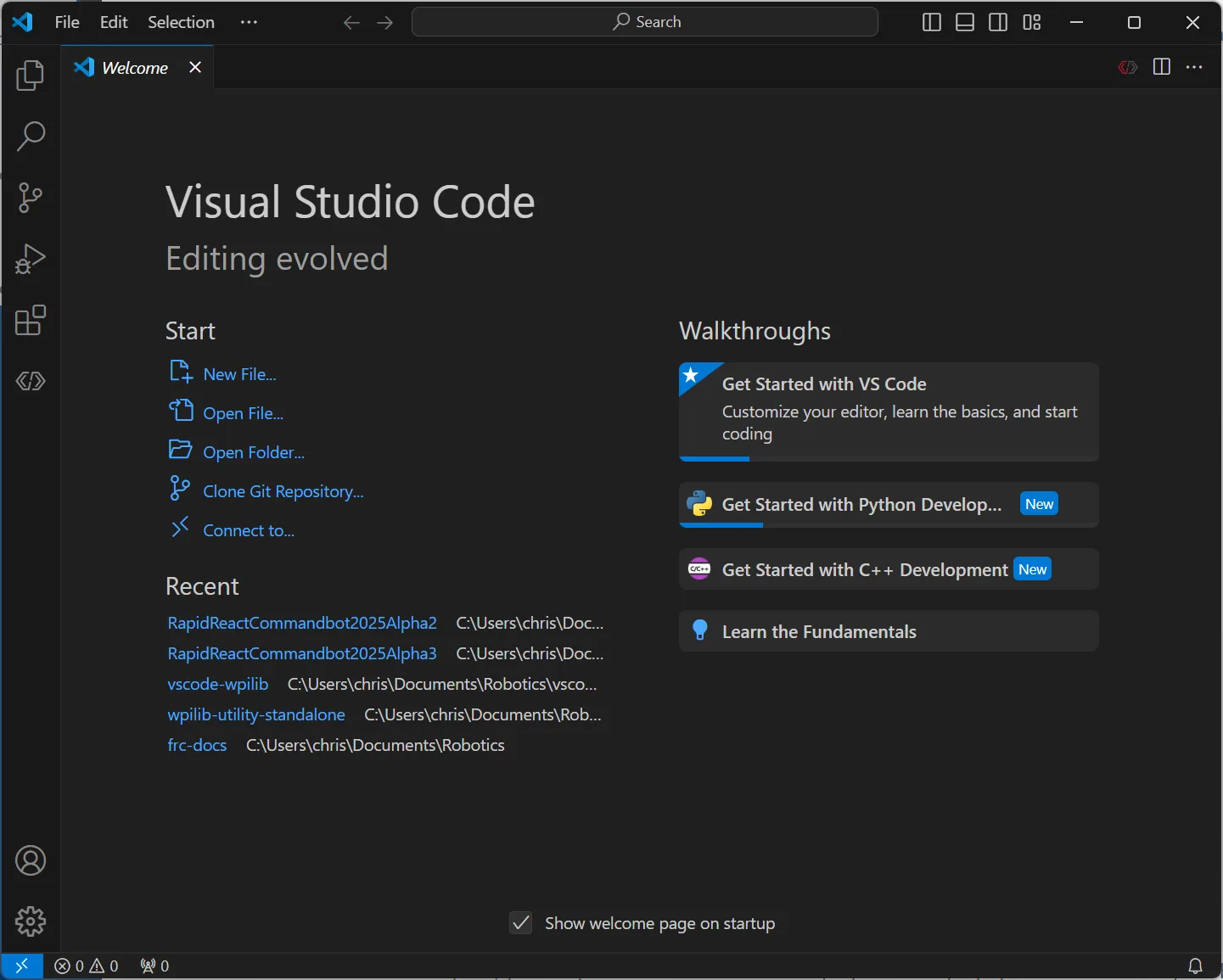
When you first open up VS Code, you are greeted with a welcome screen that has a few options. It lets you quickly customize settings and also lets you watch some tutorial videos. It also has options to create a file, open a file, open a project, and clone a Git repository.
Navigating the Interface
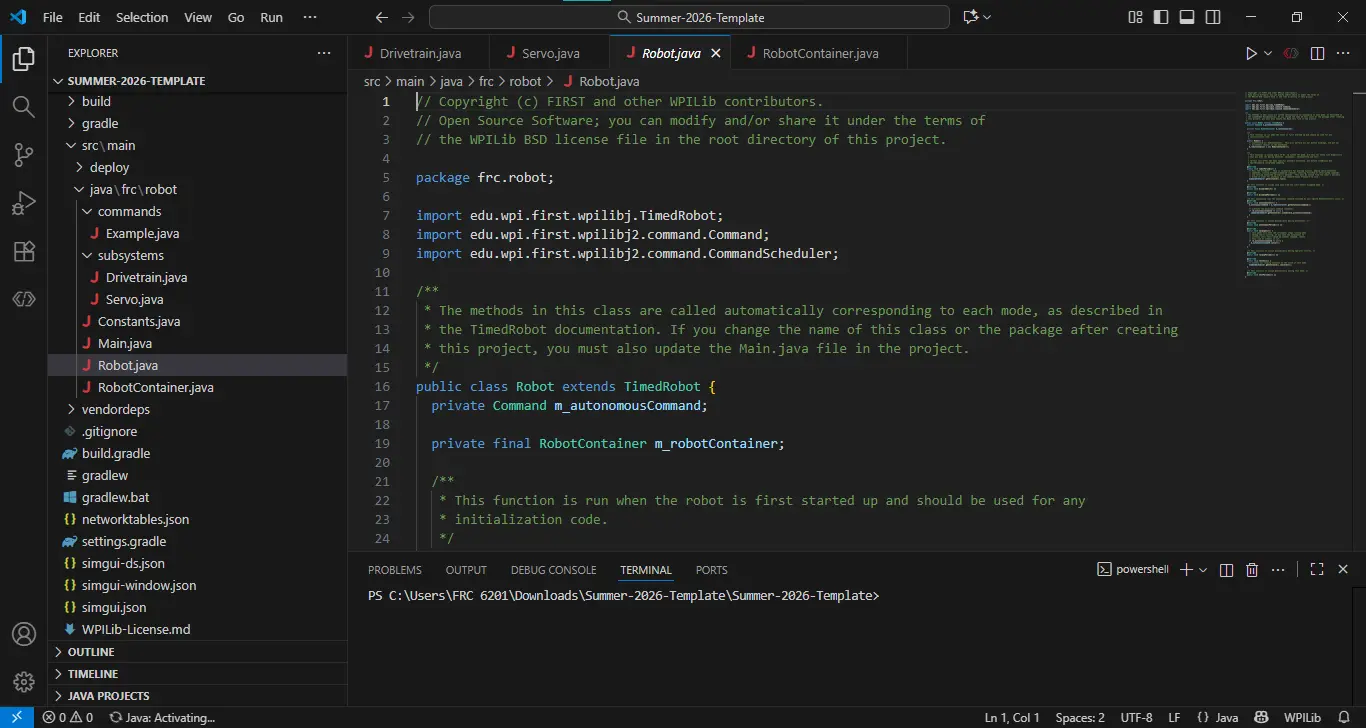
Section titled “Navigating the Interface”VS Code’s layout is categorized into a few key regions:
- The Activity Bar which is in the far left, consists of vertical icons which can be used to switch between the major views (Explorer, Search, Source Control, Run & Debug, Extensions).
- Next, the Side Bar which is next to the activity bar shows details for the selected view (for example: file tree in Explorer).
- After that, the Editor is the center area. The editor is star of the show and it is where you can view and edit files.
- Next, the Panel is at the bottom of the screen. It has four main views, which are the Terminal, Problems, Output and Debug Console.
- Finally, the Command Palette is accesed through
Ctrl+Shift+P/Cmd+Shift+Pand it allows for you to search and run any command in VS Code.
Useful keyboard shortcuts:
Ctrl+P/Cmd+Pis Quick Open which allows you to open any file by nameCtrl+Shift+P/Cmd+Shift+Popens the Command PaletteCtrl+`allows you to quickly open and close the integrated terminalCtrl+B/Cmd+Ballows you to toggle sidebar visibilityCtrl+Taballows for you switch between the open editors
Saving and Opening Files
Section titled “Saving and Opening Files”Opening Files
Section titled “Opening Files”- Open a single file:
File > Open File...orCtrl+O/Cmd+O - Open a folder/project:
File > Open Folder...orCtrl+K Ctrl+O/Cmd+K Cmd+O - Quickly open a file:
Ctrl+P/Cmd+P, then start typing the filename - Reopen a recently closed file:
Ctrl+Shift+T/Cmd+Shift+T
Saving Files
Section titled “Saving Files”- Save current file:
Ctrl+S/Cmd+S - Save as (new name/location):
Ctrl+Shift+S/Cmd+Shift+S - Save all open files:
Ctrl+K S/Cmd+K S
File > Auto Save which saves your work automatically after a pause, making it way harder to lose your work. A dot on a file’s tab indicates unsaved changes; it turns into an “X” (close icon) once the file is saved.
WPILib VS Code
Section titled “ VS Code”For FRC, you use a separate version of VS Code developed by WPILib which is part of the WPILib installer. If you already have VS Code installed on your computer, the WPILib VS Code installs seperately with the WPILib extension already installed and some settings changed.
WPILib Commands
Section titled “ Commands”One key feature of WPILib VS Code and the WPILib extension is the commands available that are specific to FRC, such as Build which lets you compile the robot code and check for errors on-device, and Deploy which builds the code and sends it over the network connection with the robot to Systemcore.
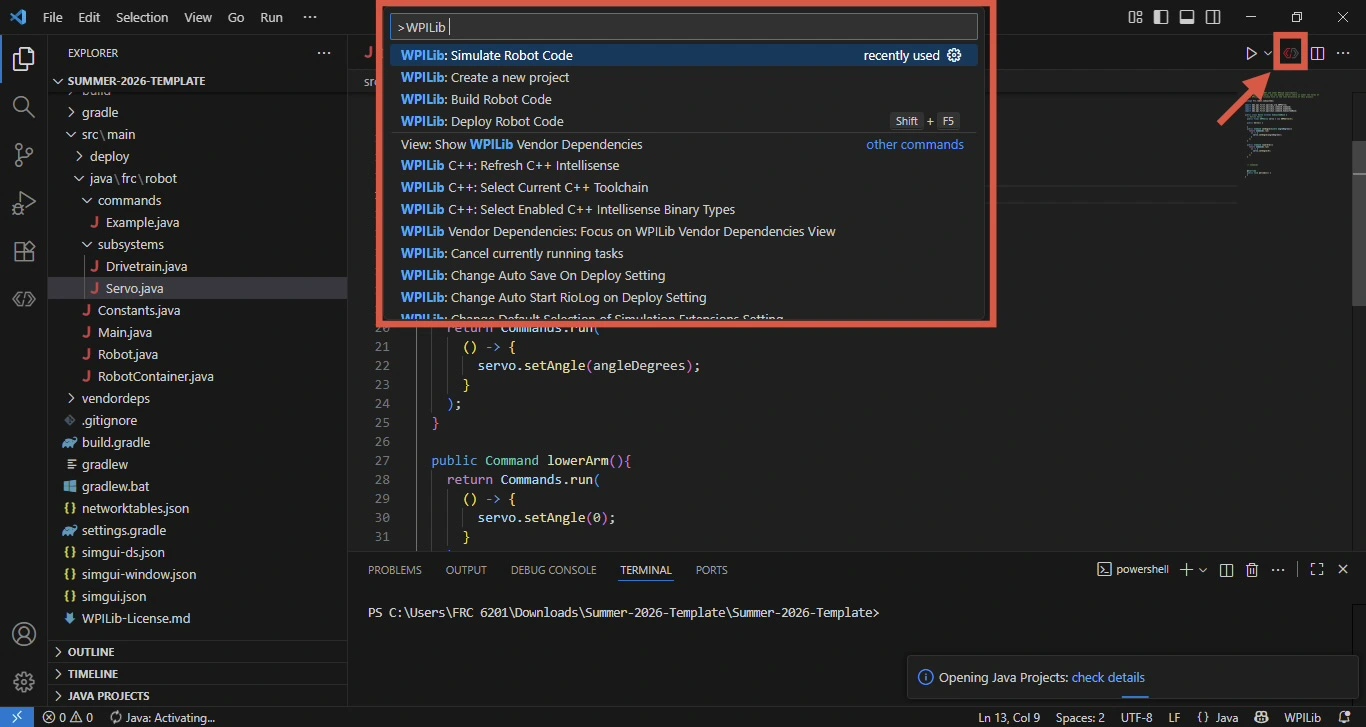
To access the WPILib commands, which are shows in the large red box on the screenshot, you can either open the command palette using the keyboard shortcut Ctrl+Shift+P / Cmd+Shift+P, or by clicking the WPILib logo in the top right corner, where the arrow is pointing to on the screenshot.